Introduction to Pixel-Perfect Reports
The Pixel-Perfect Reports Builder enables you to build customizable report templates with precise control over the positioning and style of every element on the layout, down to the individual pixel.
This is important when the output must meet exact specifications, such as in audit reports, tax forms, regulatory documents, shipping labels, and more. This feature also provides rigorous controls for formatting PDF and print output. The Pixel-Perfect Reports Builder includes many of the same features as Dashboards, including Filters, Workflows, Formulas, and its own embeddable widget.
Editor
The editor provides several tools to complete the tasks involved in creating your reports, including layout design, dataset preparation, and settings configuration. When creating fixed templates, the templates do not contain live data. The Preview or Export feature resolves the values, and the output displays as one or more pages containing the complete data.
The toolbar at the top of the page provides a variety of components that you can add to the canvas. On the right side, several configuration panels enable you to configure the report, including its components, datasets, and filters.

The majority of the interface consists of the canvas, where the report is designed. By default, reports have two headers, two footers, and a body. They are defined as follows:
- Report Header - Cover page or header that displays only on the first page of the report.
- Page Header - Header that displays on all pages of the report. The Page Header does not display on the cover or back cover, if applicable.
- Body - Principal section of the report.
- Page Footer - Footer that displays on all pages of the report. The Page Footer does not display on the cover or back cover, if applicable.
- Report Footer - Back cover page or footer that displays only on the last page of the report.
Create a Report
-
Select the Pixel-Perfect Reports icon from the left-side menu to open the Pixel-Perfect Reports dashboard.
-
Select Create New Report to open the Name Your Report modal.
-
Enter a Name and Description in the fields provided.
-
Select Next to open the Page Setup modal.
-
Select the following options:
- Paper Size
- Units of Measure
- Width
- Height
- Orientation
-
Select Finish. The new report displays in Edit mode, allowing you to design your report.
Note: You can resize the height of the canvas of each report area (Report Header, Page Header, Body, and so on) by dragging their horizontal dividing lines.
Set Up Data and Parameters
Use the Data and Parameters panel to add data for use in your report and to create parameters. You can add data from multiple datasets in a given report.
Available Data
The Data tab of the Data & Parameters panel displays all available datasets in your application for use in the report.
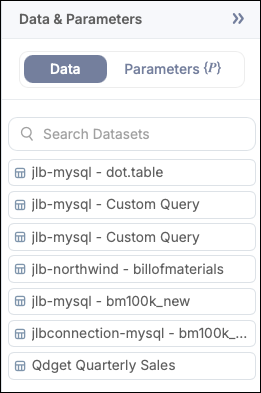
After you select a dataset, the panel displays the dataset columns as Categories and Values. Reports can contain elements displaying data from different datasets. However, dynamic tables can only use a single dataset.
Note: At any time, you can select Preview to preview the report. The Preview feature displays the actual data from your dataset.
Create a Parameter
Parameters are user-defined variables that are only available inside the report.
-
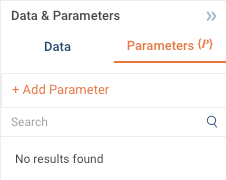
Select the Parameters tab from the Data & Parameters panel.
-
Select Add Parameter.
-
In the New Parameter modal, complete the fields and select Save. For more information about the properties, see Edit a Parameter.
Edit a Parameter
-
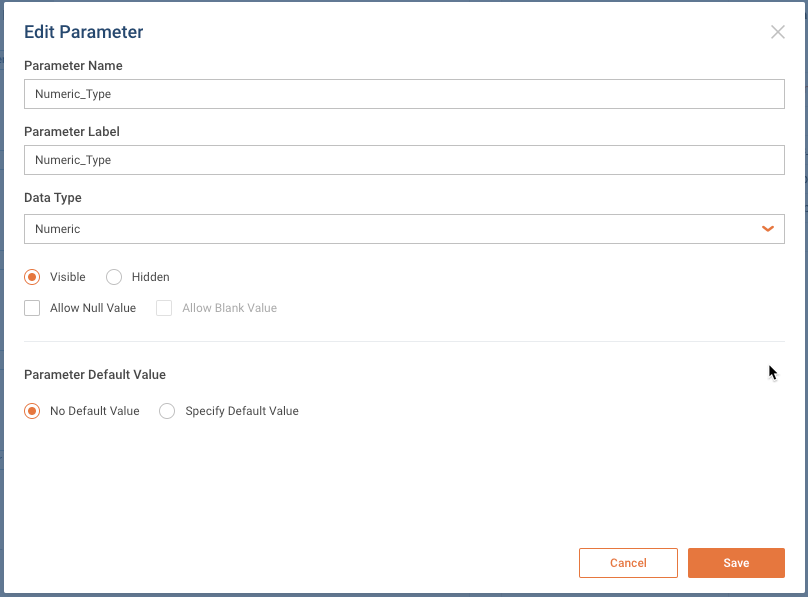
Select Edit Parameter from the options (three-dot) menu to open the Edit Parameter modal.
-
Enter a unique Parameter Name in the field provided (special characters not permitted).
-
Enter helpful text in the Parameter Label field. This text displays in the parameter’s preview panel.
-
In the Data Type dropdown, select Numeric, Text, or Date Time.
-
Select whether the parameter is Visible or Hidden. If set to Visible, you will be prompted to provide a value when using the Preview feature. If set to Hidden, you will either need to define a default value or select Allow Null Value.
-
To enable the parameter to accept an empty or null value, select Allow Null Value.
-
To enable the parameter to accept an empty string as a value, select Allow Blank Value. This option is only available for Text parameters.
-
To define a default value, select Specify Default Value. Enter the desired value in the Default Value field.
-
Select Save.
Use Parameters in the Report Body and Filters
Parameters can be used in several ways in the report. They can display information, or they can serve as interactive filters.
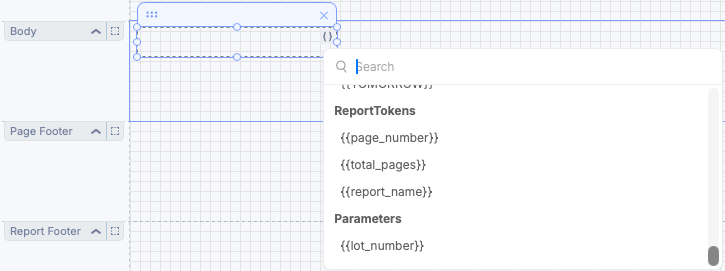
To display a parameter value in the Text element:
-
Add a Text element to the report and select
{}.
-
Scroll to the bottom of the tokens list and select your parameter from the Parameters section.
-
Preview the report. If you didn’t specify a default value for your parameter, enter it and select Preview Report.
To add an interactive filter:
-
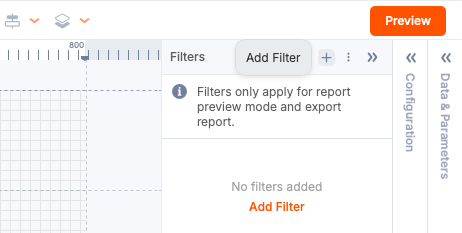
While in Edit mode, add a new filter.
-
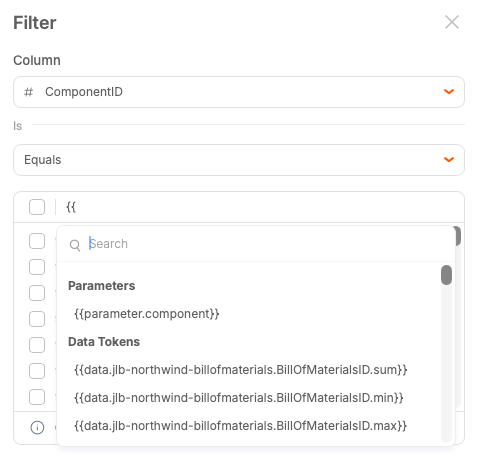
In the Filter window, select a data column to filter by.
-
Start typing
{{in the search field to display the list of tokens. -
Select your parameter, then press Enter to add it to the filter.
-
Apply your changes. The parameter value is now associated with the filter.
-
To apply the filter, enter the filter value in the report preview and select Preview Report.
If you specified the default value, the filter value will be prefilled, but can be changed interactively.
Notes:
- Parameter values are case-sensitive.
- Parameters do not support multiple values.
Use Parameters in the Report Group and Page Group
You can use text parameters within the Associated Column field of Report Group and Page Group. Instead of hard-coding a specific column for grouping, you can now dynamically specify which column to use at runtime by passing the column ID through parameters. This allows a single report template to be reused with different grouping configurations, providing greater flexibility and reducing the need for duplicate reports.
Start by creating a parameter to use with grouping. If you choose to specify a default parameter, the value must be passed in the format:
datasetId.columnId
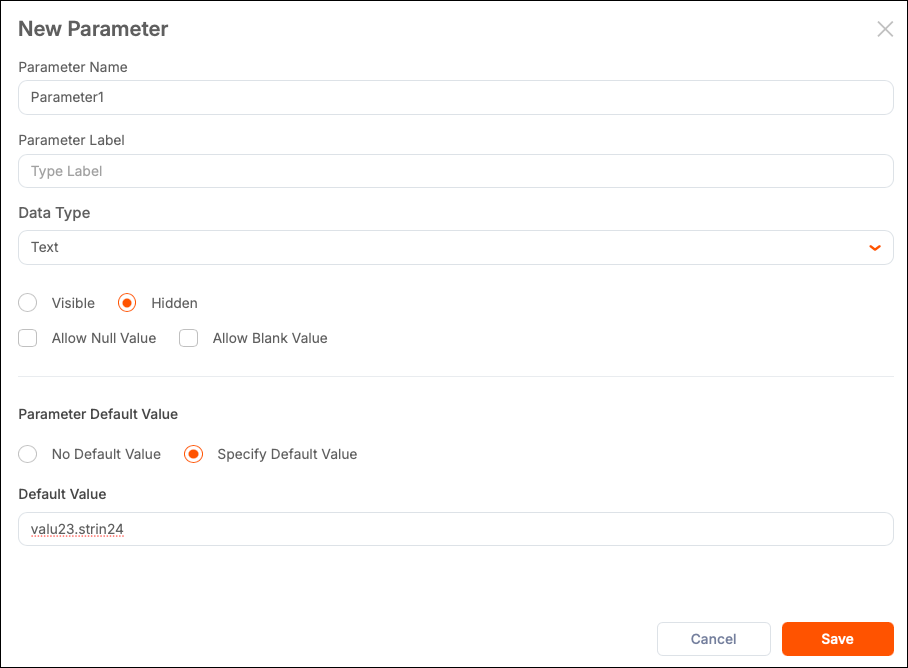
The default parameter will be overridden by the value passed in the parameterValues object of the Pixel-Perfect Reports Widget during run time.
When the report is previewed or exported:
- If a default parameter value is configured, it is used.
- If a value is passed at runtime, it overrides the default.
- The specified dataset column is used for grouping.
- The result is identical to directly configuring that column in the Associated Column field.
Note: When a parameter is used in this format, Qrvey recommends using it as hidden to hide the internal IDs.
Use Parameters in Images
Use text parameters for images to dynamically load their URLs. Instead of using static uploaded images or hardcoded URLs, images can retrieve their source paths from parameters, allowing them to change dynamically.
To create a parameter to use with images, add the image URL to the parameter.
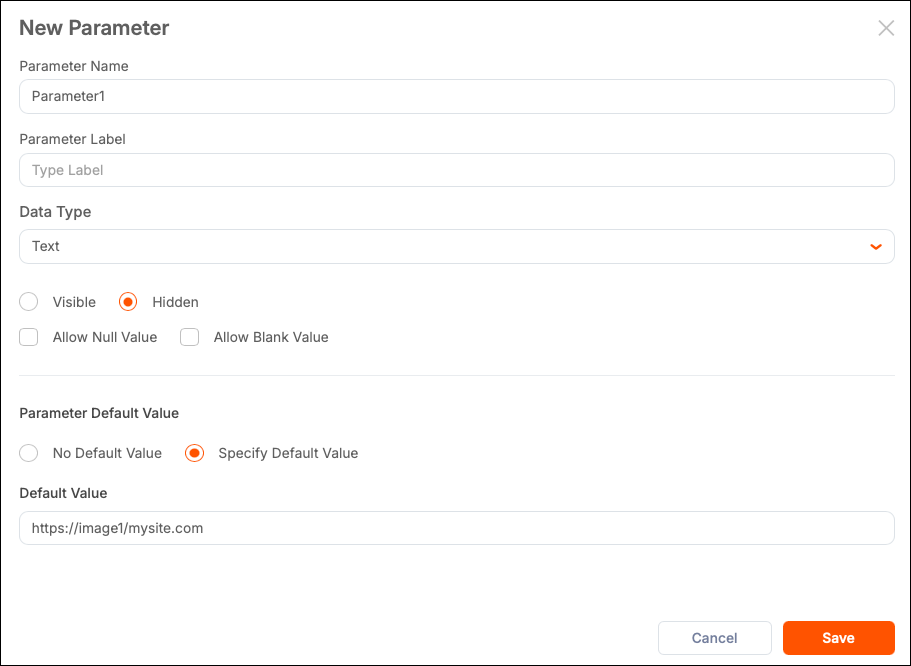
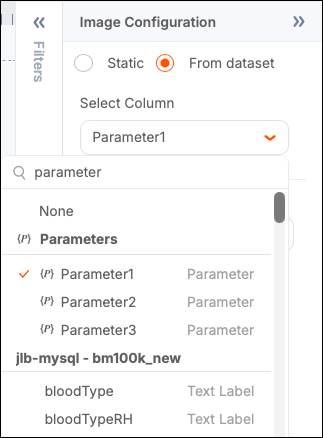
To create an image that uses an image URL stored in the parameter:
-
Add an image element to the report.
-
In the Image Configuration panel, select From Dataset.
-
Select the Column dropdown and then select a parameter that contains an image URL.
Report Groups
Use the Configuration panel to divide the report into a set of reports organized by an Associated Column. The groups are represented within the report as separate tabs. When you download the report, it generates a ZIP file containing separate PDF files.
To create a report group, select the area outside of the report canvas and then select an Associated Column from the configuration panel. You can select a dataset column or parameter when you need to dynamically pass a column ID.
You can also manage the sorting order (default: Ascending) from this panel to sort the groups.
Report Use Cases
You can perform the following actions with a report.
Preview Report
The Preview feature enables you to see the report with actual data. It resolves all token values and applies all filters. Use it to verify your configurations. If you defined a Report Group, the report is divided into separate tabs for each distinct value from the associated column.
To preview the report, select the Preview button. If you included parameters in the report, the Parameters panel displays, prompting you to enter values for the parameters before the report can be displayed.
The report displays in its final format. To return to edit mode, select Edit.
Note: Reports are limited to 200 pages and 1000 tabs.
Download Report to PDF
Pixel-Perfect Reports enable you to download completed reports in PDF format. If you defined a Report Group, the report is divided into separate tabs for each distinct value from the associated column. You can choose to download a PDF of only the current tab or a ZIP file containing PDFs of all the tabs in the report.
Note: To download reports, your user account must have the Exporting permission, which is configured in Qrvey Admin Center. For more information, see Managing Users.
-
Select the Preview button to display the report with data resolved from the selected dataset column.
If you included parameters in the report, the Parameters panel displays, prompting you to enter values for the parameters before the report can be displayed.
-
To download the tab you are viewing, select the Download icon and select Download Report to PDF. The Exports and Subscription dialog allows you to schedule exports and subscribe to them.
-
If you defined a Report Group, you can create PDFs of each tab (downloaded together in a single ZIP file). To download all tabs, select the Download icon and select Download All Reports to PDF. The Download File dialog displays indicating that the file will be exported.
-
On the Export dialog, select one of the following options:
- Concatenate Date and Time to the file name.
- Export now or Schedule and Subscribe to the export.
-
Select Export Now or Schedule.
Send Report in Email
The Send Email action in Workflows/Automation supports Pixel-Perfect Reports. It supports one report for each email action. You can add other types of attachments (files, chart exports, and dashboard exports) to the same action. The email is sent to the address of the user ID in the widget or the logged-in user.
For more information, see the Send an Email section of Send Actions.
Embed a Report
The Pixel-Perfect Reports widget enables you to embed this feature into applications. For more information, see Pixel-Perfect Reports Widget.
Filter Data
Filters enable you to refine the data that is displayed in the reports. Filters in Pixel-Perfect Reports use a configuration similar to Filters in Qrvey Composer. However, filters in Pixel-Perfect Reports are not applied while the canvas is in Edit mode. The filters are applied when you preview a report.
To create a filter, open the Filters panel and select Add Filter.

For more information on configuring filters, see Introduction to Filters.
Bucket Data
Pixel-Perfect Reports enable you to create buckets in your reports and add them to your report’s dataset. Buckets can improve the ability to analyze data by grouping multiple data points into a single item. After you have created a bucket, it is linked to the dataset in which it was created, and it is available in all reports using that same dataset.
To create a bucket, select a dataset from the Data panel, then select the Bucket icon in the toolbar.

For more information on creating buckets, see Bucketing Data.
Formulas
Pixel-Perfect Reports support the use of formulas to manipulate data from the report’s dataset.
To create a formula, select a dataset from the Data panel, then select the Formula icon in the toolbar.
For more information on creating formulas, see Formulas.